
Approve, don't manage: what an approval workspace looks like
 Katie LendelFounder & Strategic Marketing Lead
"Approve, don't manage" is a line I use a lot, and I know it can sound like a slogan. So here is the plain version: what an owner actually sees and does inside an approval workspace, one screen at a time.
The examples come from the sample workspace on the ScaleLounge home page. It belongs to an illustrative business called Meridian Studio and runs on made-up data, so it is not a client account and not a promise of results. The screens are the real ones, though, and the order of things is how the work moves.
The whole idea fits in three sentences. The work arrives first. The owner approves it or sends it back with a note. Nothing is published until the owner says yes.
What stays with the owner, and what does not
Before the screens, one line about who does what, because the screens only make sense with it.
My way of saying it is that your marketing needs an owner, and it does not have to be you. ScaleLounge owns the agreed work and keeps it moving, with me leading the direction. That means planning it, creating it, publishing it after approval and following through month after month. The owner keeps the part only an owner can do: the priorities, the business context, the approvals and the decisions nobody else can make.
That split explains how everything on the screens is arranged.
ScaleLounge takes this work off an owner's plate, from the strategy to the work itself. See how ScaleLounge works.
Step one: the work arrives first
Everything starts with the priorities an owner shares. From those, I recommend the work. On every plan, the owner sees the direction within 24 to 48 hours of a completed intake.
Then pieces start to show up. Near the top of the sample Home screen is a plain sentence: 3 posts are ready for your review. Right under it, a second line says we handle the publishing after approval. The sidebar carries an Approvals item with the same count beside it.
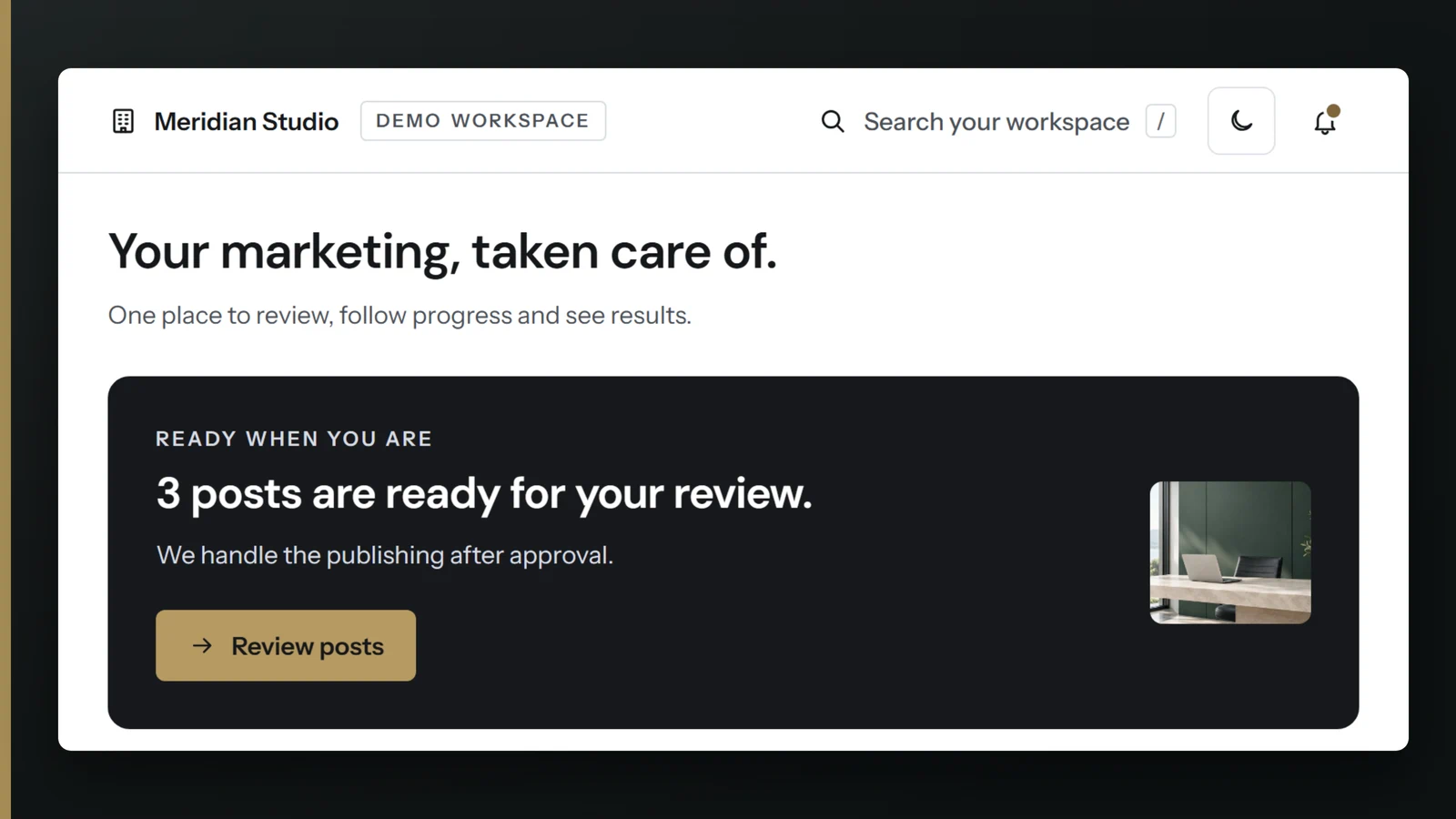
Inside Approvals there are three tabs: Needs review, Changes requested and Approved. Each piece sits in exactly one of them. What I like about this is that nobody goes looking for the work. It comes to the owner, and the only things waiting for a decision are the things that need one.
Step two: one post, up close
A piece in the Needs review tab shows the post the way it would appear, plus what the owner decides on it. In the sample, the first post is called "Make room for what matters." Here is what sits on the screen:
- The post itself, with its image or concept card and a caption that expands to the full text.
- One version for each platform, Instagram, Facebook and LinkedIn, each with a preview before anything is approved.
- A proposed date and time.
- The destination, meaning the exact account the post would go to.
- Two buttons: Request changes and Approve post.
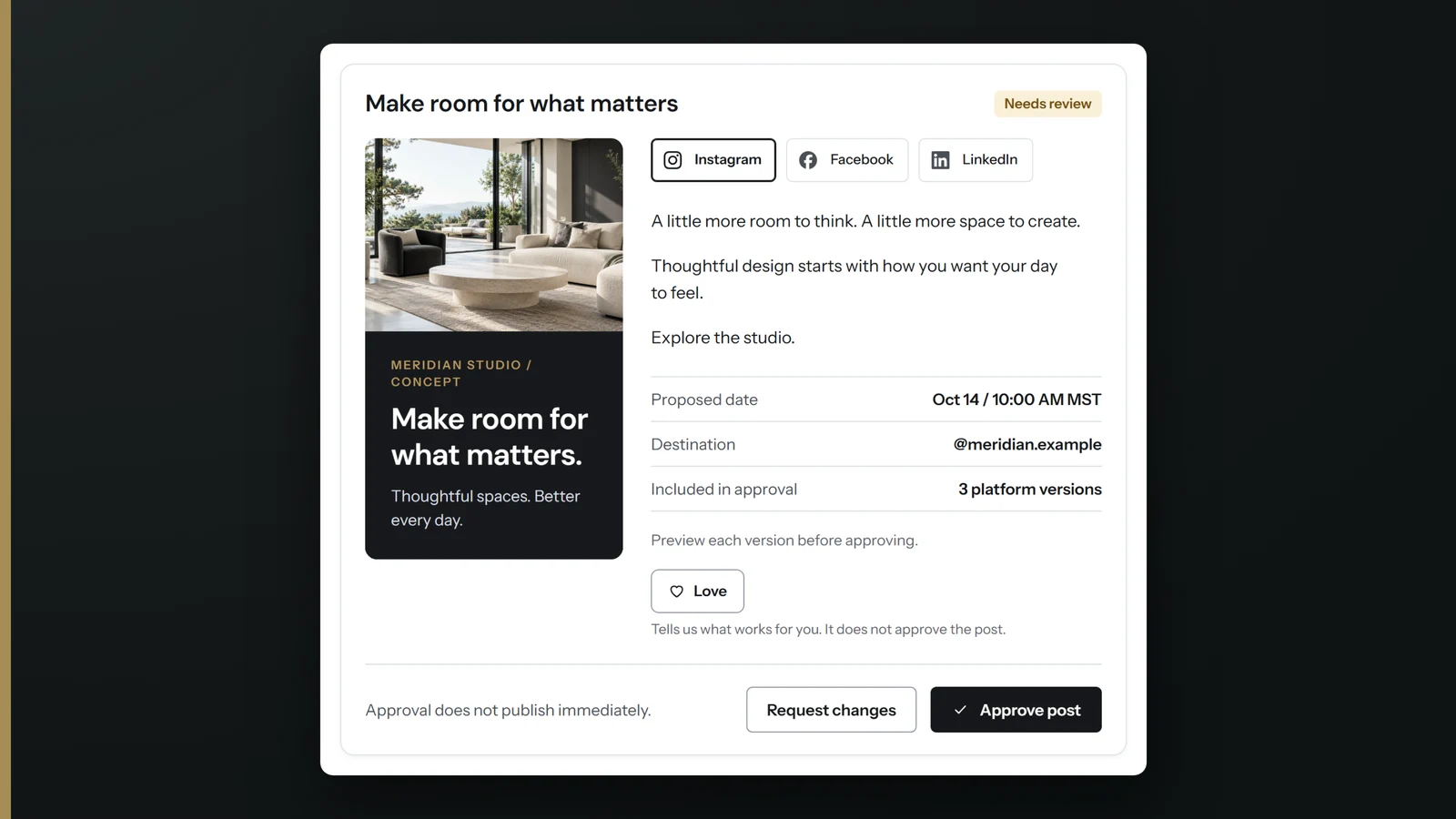
The separate versions matter more than they look. A post that suits Instagram does not always suit LinkedIn, and in the sample the owner's notes treat the two apart.
One line on that screen matters more than the rest: "Approval does not publish immediately." Approving puts the post on the schedule for the date shown.
There is also a Love reaction. It tells us what works for the owner, and the screen says plainly that it does not approve the post. I like that detail because a warm reaction and a yes are two different things, and the workspace keeps them apart.
Step three: sending a piece back with a note
Request changes is how an owner sends a piece back with notes. In the sample, the owner, Jess, left two notes on one post. On the Instagram version she wrote, "Could we use the window view instead of the desk?" On the LinkedIn version she wrote, "A shorter caption for LinkedIn, please." Two notes, one request.
Three things happen next, all in the same place:
- The post moves to the Changes requested tab, with Jess's notes, who sent them and when.
- ScaleLounge replies underneath. In the sample, the reply says both changes are in progress and that the new version comes back to the same screen.
- The revised post returns to Needs review, marked "Updated after your notes."
This is the part I care about most. Feedback sits next to the piece it is about, tied to the exact version it is about. Nothing depends on someone remembering a text message, a phone call or an email thread from last week.
Step four: what happens after the yes
The calendar makes the sequence visible. Dates still waiting on a decision are marked proposed, not scheduled. Once a post is approved it shows as scheduled, and once it goes out it shows as published, with a link to each live post.
Every approved post also keeps an approval record: who approved it, the date and time, and which versions and destinations were approved. The approval is bound to those versions and destinations, and any change comes back for review. In plain words, the yes stays attached to exactly what the owner saw.
In the sample, the Approved tab reads like a plain list. Each post sits on its own line with a label: Scheduled with its date, Approved with scheduling next, or Published with the day it went out.
From there, publishing is ScaleLounge's job, and the owner can see what went out and when.
A workspace that is not another system to run
The Home screen carries a short summary of the month in four parts: what we handled, what changed, what happens next and what needs the owner. In the sample, what needs Jess is one line: 3 posts to review.
So an owner's visit has a simple shape. The pieces under Needs review get read, and each one gets a yes or a note. It all works from a laptop or a phone, in the same place. The yes is the one thing nobody else on the project can supply, which is why the whole workspace is arranged around it.
That is the whole job, and it is why I say approving instead of managing. Managing means holding the plan in your head and chasing everyone to follow it. Approving means someone else holds the plan, drafts the work and follows through, and the owner makes the calls only an owner can make.
The free ScaleLounge account runs on the same rule. The content writer drafts hooks, posts, blogs and emails in your brand voice, everything you make is saved in your private portal, and nothing goes out without your approval.
Rather hand this off than add it to your week? That is what ScaleLounge is for. See what ScaleLounge handles.
FAQ
What does approving a post actually do?
It puts the post on the schedule for the date and time shown, on the accounts shown. Approval does not publish immediately. The approval is tied to those exact versions and destinations, so any change comes back for review.
Where does a note go when I send a piece back?
It stays on the piece, on the version it applies to. The piece moves to the Changes requested tab, ScaleLounge revises it, and the new version comes back to the same screen for review.
How does an owner see what was published?
The calendar and the Approved tab show each post with its status, scheduled or published, along with the date and time and a link to the live post. The Home screen adds a monthly summary of what was handled, what changed and what happens next.
